Trialflare’s integrated video calling allows you to meet with participants remotely for support, capturing informed consent, or conducting study catch-ups—all without requiring third-party software.
🔐 Permissions & Costs
-
Permissions: To create and manage meetings, you must be a Trial Admin or have the "Create participant meetings" permission.
-
Billing: Video calls are billed directly against your trial's wallet. Charges are calculated per participant-minute (when two or more people are in the call) and per transcription-minute (if enabled).
🗓️ Creating a New Meeting
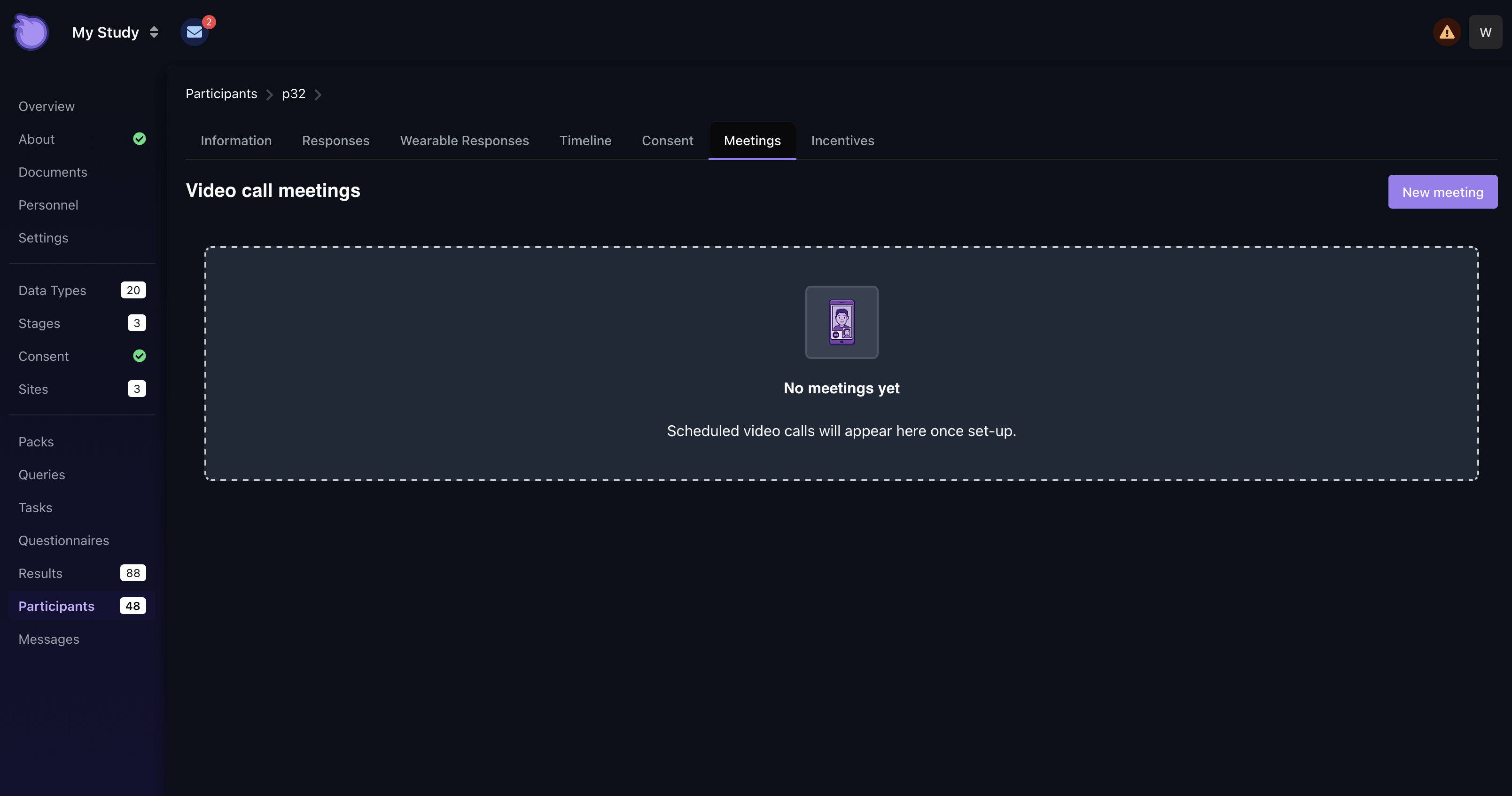
To schedule a call, navigate to a specific participant's profile and select the Meetings tab.
-
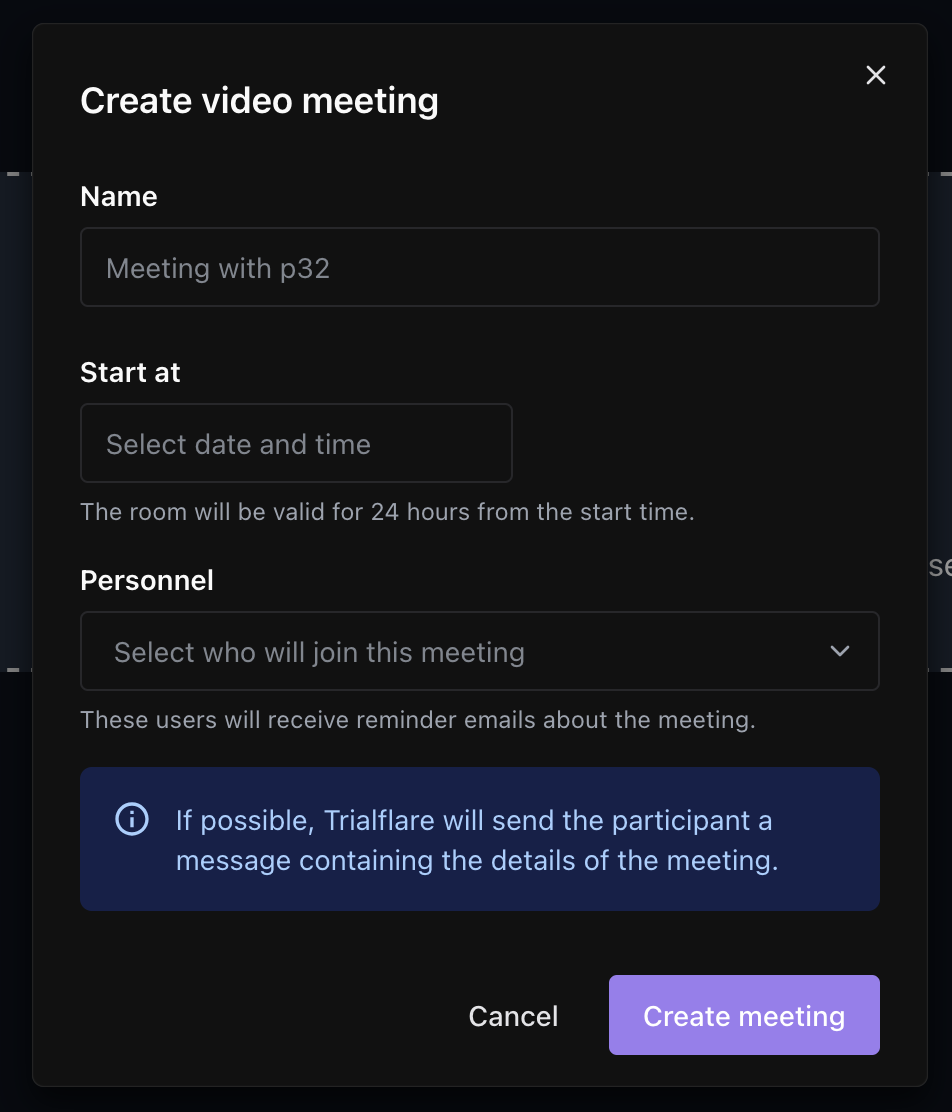
Click New meeting.
-
Name: Give the meeting a clear title (e.g., "Consent Briefing" or "Week 4 Follow-up").
-
Start at: Choose the scheduled date and time.
- Tip: Meetings are valid for 24 hours from the start time. To create a long-lived room you can reuse, simply set the start date further into the future.
-
Personnel: Select which study team members should attend.
-
Create meeting: Trialflare handles the rest!
Automated Notifications
-
For Participants: They automatically receive an invitation link via the Trialflare app, as well as through any configured contact methods (Email, SMS, or WhatsApp).
-
For Personnel: Assigned staff receive an email with a calendar invitation (.ics) compatible with Outlook, Google Calendar, and more.
-
Reminders: Trialflare sends automated reminders to both staff and participants shortly before the meeting begins.
🎥 Hosting and Joining a Call
Trialflare meetings take place entirely within the web browser. No downloads or external apps are required for either the host or the participant.
-
Joining as Host: Study personnel should click the Join as host button from the Meetings tab. This grants you moderator rights to manage the call.
-
Participant Access: Participants are provided with a "non-host" link that allows them to join the room once the host is present.
In-Call Features: Recording & Transcription
During the meeting, the host has the option to:
-
Enable Recording: Save the video/audio of the session.
-
Start Transcription: Generate a text record of the conversation.
Post-Call: Once a meeting concludes, any generated transcriptions will be processed and made available for download directly from the participant's Meetings tab.
🛠️ Editing and Deleting
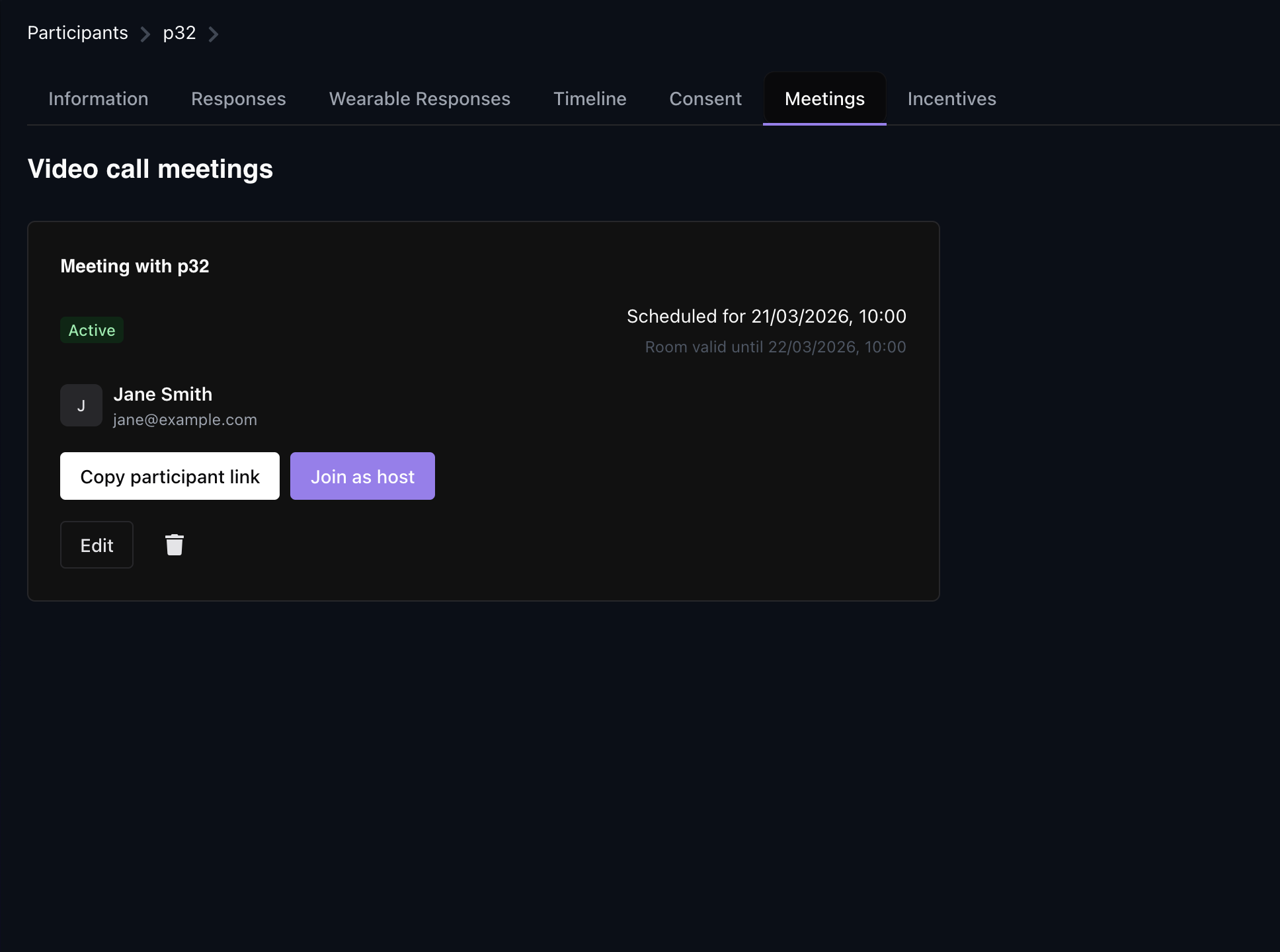
You can manage existing meetings at any time from the Meetings dashboard:
-
Edit: Update the meeting name or change the assigned personnel.
-
Copy Participant Link: If a participant loses their invite, you can manually copy the link to send to them.
-
Delete: Remove the meeting entirely. Note that once deleted, the link will no longer function.